Factorio Randomizer Setup Guide
❗This guide is similar to the regular Factorio implementation, but the initial server setup is a bit different. Sections that have been changed are highlighted.
Required Software
Players
- Factorio: Factorio Official Website
- Needed by Players and Hosts
Server Hosts
- Factorio: Factorio Official Website
- Needed by Players and Hosts
- MultiworldGG: MultiworldGG Releases Page
- Needed by Hosts
Create a Config (.yaml) File
What is a config file and why do I need one?
Your config file contains a set of configuration options which provide the generator with information about how it should generate your game. Each player of a multiworld will provide their own config file. This setup allows each player to enjoy an experience customized for their taste, and different players in the same multiworld can all have different options.
Where do I get a config file?
The Player Options page on the website allows you to configure your personal options and export a config file from them. Factorio player options page: Factorio Options Page
Verifying your config file
If you would like to validate your config file to make sure it works, you may do so on the YAML Validator page. YAML Validator page: Yaml Validation Page
Connecting to Someone Else's Factorio Game
Connecting to someone else's game is the simplest way to play Factorio with MultiworldGG. It allows multiple people to play in a single world, all contributing to the completion of the seed.
- Acquire the Archipelago mod for this seed. It should be named
AP_*.zip, where*is the seed number. - Copy the mod file into your Factorio
modsfolder, which by default is located at:C:\Users\<YourUserName>\AppData\Roaming\Factorio\mods - Get the server address from the person hosting the game you are joining.
- Launch Factorio
- Click on "Multiplayer" in the main menu
- Click on "Connect to address"
- Enter the address into this box
- Click "Connect"
Prepare to Host Your Own Factorio Game
Defining Some Terms
In MultiworldGG, multiple Factorio worlds may be played simultaneously. Each of these worlds must be hosted by a Factorio server, which is connected to the MultiworldGG Server via middleware.
This guide uses the following terms to refer to the software:
- Factorio Client - The Factorio instance which will be used to play the game.
- Factorio Server - The Factorio instance which will be used to host the Factorio world. Any number of Factorio Clients may connect to this server.
- MultiworldGG Client - The middleware software used to connect the Factorio Server to the MultiworldGG Server.
- MultiworldGG Server - The central MultiworldGG server, which connects all games to each other.
What a Playable State Looks Like
- An MultiworldGG Server
- The generated Factorio Mod, created as a result of running
MultiworldGGGenerate.exe - One running instance of the Factorio MultiworldGG Client per Factorio world
- A running modded Factorio Server, which should have been started by the MultiworldGG Client automatically
- A running modded Factorio Client
Configure your MultiworldGG Installation
:exclamation: This is different from regular AP Factorio
Unlike the default Factorio setup, SAWS expects you to use your normal Factorio install for both Client and Server.
factorio_saws_options:
  executable: "C:\\Program Files (x86)\\Steam\\steamapps\\common\\Factorio\\bin\\x64\\factorio.exe"
This allows you to host your own Factorio game.
Hosting Your Own Factorio Game
:exclamation: This is different from regular AP Factorio
- Obtain the Factorio mod for this MultiworldGG seed. It should be named
AP_*.zip, where*is the seed number. - Install the mod into your Factorio Server by copying the zip file into the
MultiworldGG/factorio_saws/modsfolder. If this folder does not exist, launch the SAWS client once to generate the server files.- :exclamation: This is not the server's default mod directory. This is a APSAWS-specific folder in your MultiworldGG directory.
- Download the latest version of https://mods.factorio.com/mod/SpaceAgeWithoutSpace and place it in the same folder.
- Install the mod into your Factorio Client by copying the zip file into the
modsfolder, which is likely located atC:\Users\YourName\AppData\Roaming\Factorio\mods. - Obtain the MultiworldGG Server address from the website's host room, or from the server host.
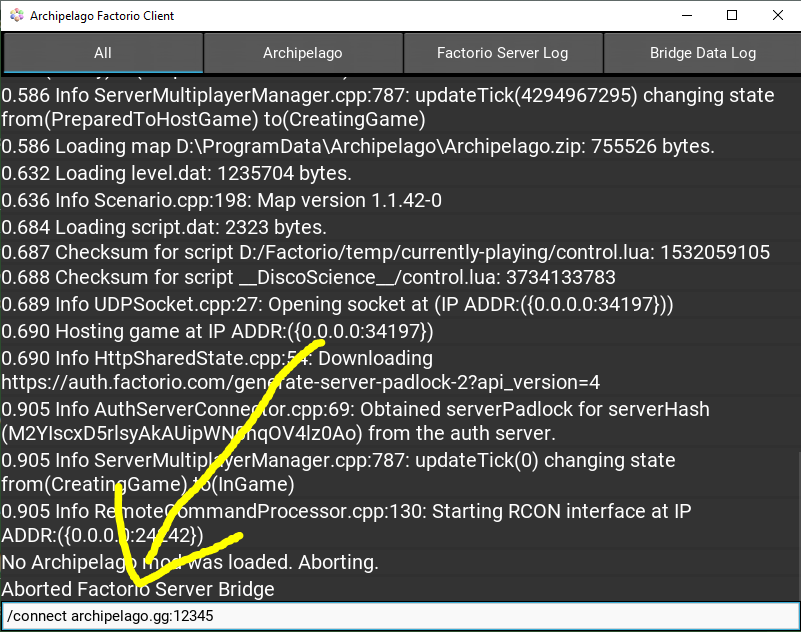
- Run your MultiworldGG Launcher, and select the "Factorio: Space Age Without Space Client"
- Enter
/connect [server-address]into the input box at the bottom of the MultiworldGG Client and press "Enter"
- Launch your Factorio Client
- Click on "Multiplayer" in the main menu
- Click on "Connect to address"
- Enter
localhostinto the server address box - Click "Connect"
For additional client features, issue the /help command in the MultiworldGG Client. Once connected to the AP server,
you can also issue the !help command to learn about additional commands like !hint.
For more information about the commands you can use, see the Commands Guide and
Other Options.
Allowing Other People to Join Your Game
- Ensure your MultiworldGG Client is running.
- Ensure port
34197is forwarded to the computer running the MultiworldGG Client. - Obtain your IP address by visiting whatismyip.com: WhatIsMyIP Website.
- Provide your IP address to anyone you want to join your game, and have them follow the steps for "Connecting to Someone Else's Factorio Game" above.
Enabling Peaceful Mode
By default, peaceful mode is disabled. There are two methods to enable peaceful mode:
By config file
You can specify Factorio game options such as peaceful mode and terrain and resource generation parameters in your
config .yaml file by including the world_gen option. This option is currently not supported by the web UI, so you'll
have to manually create or edit your config file with a text editor of your choice.
The template file is a good starting point and contains the default value of
the world_gen option. If you already have a config file you may also just copy that option over from the template.
To enable peaceful mode, simply replace peaceful_mode: false with peaceful_mode: true. Finally, use the
.yaml checker to ensure your file is valid.
After starting
If you have already submitted your config file, generated the seed, or even started playing, you can retroactively enable peaceful mode by entering the following commands into your MultiworldGG Factorio Client:
/factorio /c game.surfaces[1].peaceful_mode=true
/factorio /c game.forces["enemy"].kill_all_units()
(If this warns you that these commands may disable achievements, you may need to repeat them for them to take effect.)
Other Options
filter_item_sends
By default, all item sends are displayed in-game. In larger async seeds this may become overly spammy. To hide all item sends that are not to or from your factory, do one of the following:
- Type
/toggle-ap-send-filterin-game - Type
/toggle_send_filterin the MultiworldGG Client - In your
host.yamlset
factorio_options:
  filter_item_sends: true
bridge_chat_out
By default, in-game chat is bridged to MultiworldGG. If you prefer to be able to speak privately, you can disable this feature by doing one of the following:
- Type
/toggle-ap-chatin-game - Type
/toggle_chatin the MultiworldGG Client - In your
host.yamlset
factorio_options:
  bridge_chat_out: false
Note that this will also disable ! commands from within the game, and that it will not affect incoming chat.
Troubleshooting
In case any problems should occur, the MultiworldGG Client will create a file FactorioClient.txt in the /logs. The
contents of this file may help you troubleshoot an issue on your own and is vital for requesting help from other people
in MultiworldGG.
• Missing required dependency SpaceAgeWithoutSpace >= 0.0.10
Make sure you have downloaded SpaceAgeWithoutSpace into your factorio_saws mods folder.
Additional Resources
- Alternate Tutorial by Umenen: Factorio (Steam) Archipelago Setup Guide for Windows
- Factorio Speedrun Guide: Factorio Speedrun Guide by Nefrums
- Factorio Wiki: Factorio Official Wiki